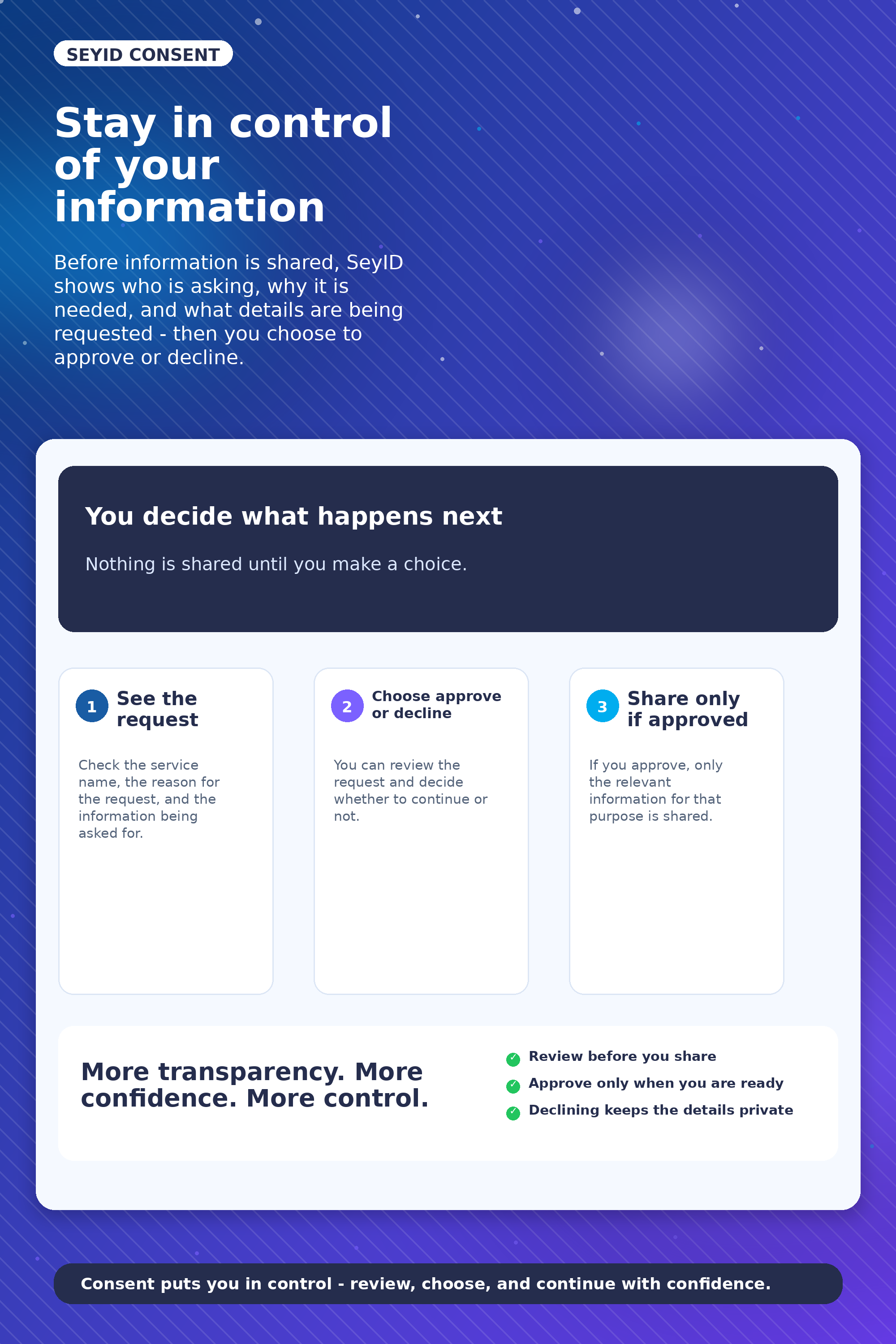
Before anything is shared, SeyID shows who is asking, why it is needed,
and what details are being requested. You then choose whether to approve or decline.
When a service needs certain details from your SeyID profile, you receive a request,
review it, and choose whether to approve or decline. Nothing is shared through this
consent journey until you make a choice.
See what is being asked
View the service name, the reason for the request,
and the type of details being requested.
You choose what happens next
Review the request in the app and decide whether to approve or decline.
Built for confidence
The feature is designed to give you more transparency,
more confidence, and more control.
FEATURED EXPLAINER
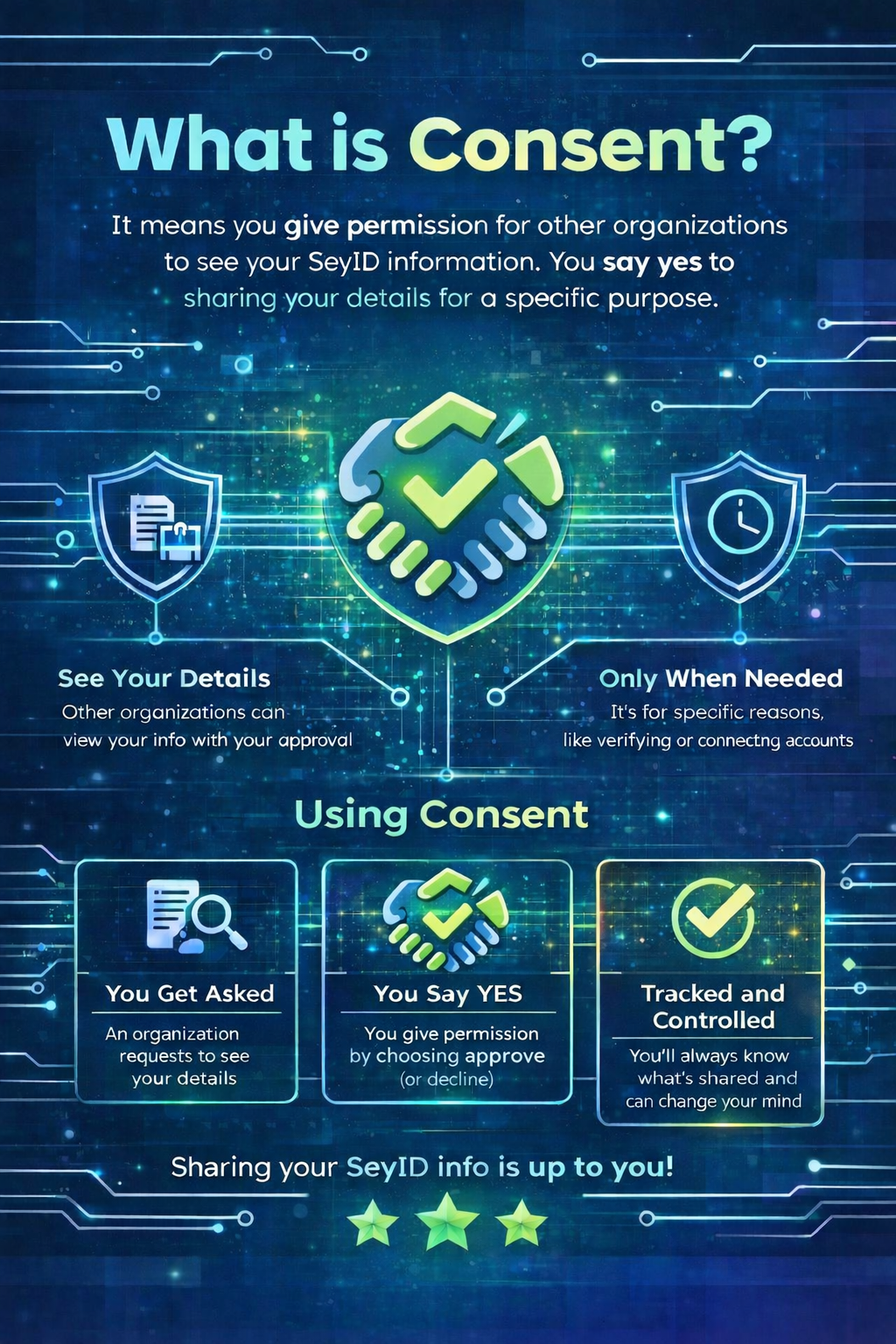
What is consent?
This visual quickly explains what consent means, when it is used,
and how the user stays in control before anything is shared.
Easy to understand Good for first-time users Clear at a glance
HOW IT WORKS
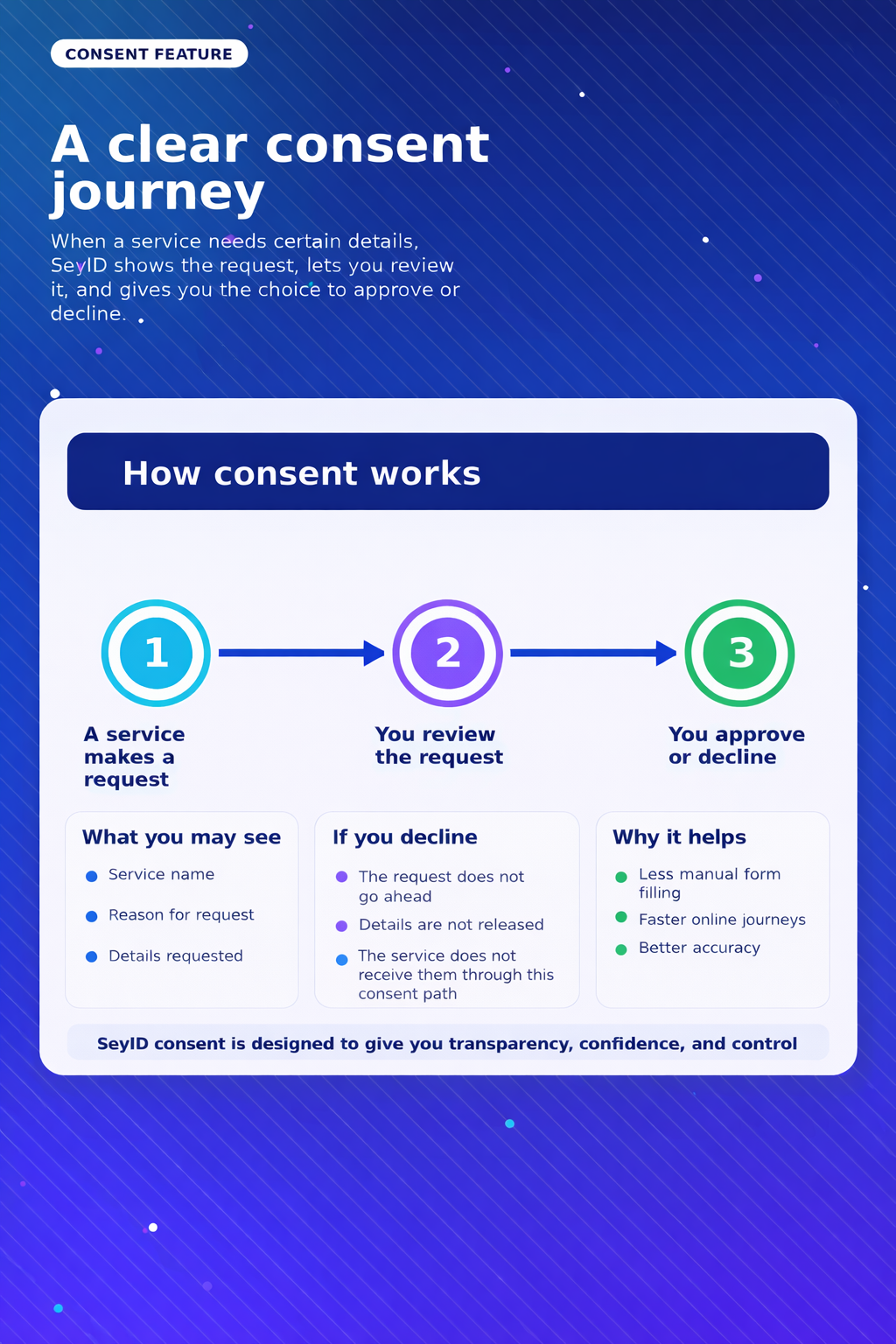
A simple consent journey
The normal flow is easy to understand and easy to follow.
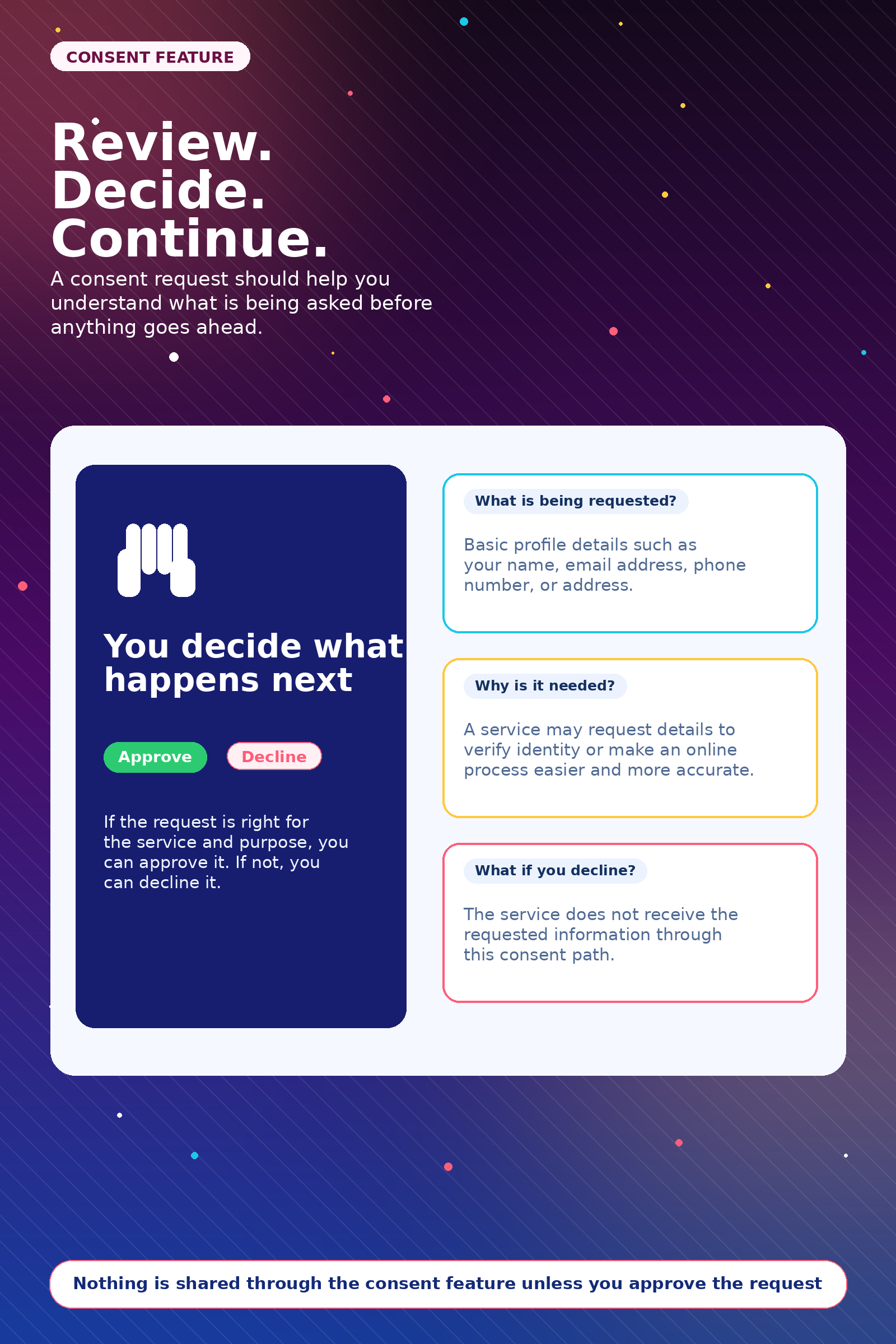
You decide what happens next
Nothing is shared until you make a choice.
1
A service makes a request
A service asks for access to certain information needed for a specific step.
2
You review the request
SeyID shows who is asking, why they need it, and what details are requested.
3
You approve or decline
If you approve, the relevant information is shared for that request.
If you decline, it is not released through this consent path.
What you may see
Service name
Reason for request
Details requested
If you decline
The request does not go ahead
Details are not released
The service does not receive them through this consent path
Why it helps
Less manual form filling
Faster online journeys
Better accuracy
Visual guide
Explore the feature visually
Switch between the posters to see the consent journey in a cleaner and more engaging way.
Consent journey
A simple visual path that shows how a request is reviewed and how the user chooses what happens next.
INTERACTIVE GUIDE
See the approve and deny journeys in one place
Switch between the two flows below to see exactly what happens in the app, step by step.
Compare both journeys
Choose a flow, then move through the steps to see what the user sees in the SeyID app.
Deny journey
How to deny a consent request
Follow the steps below to see how a user can stop a request from continuing.
Deny flow
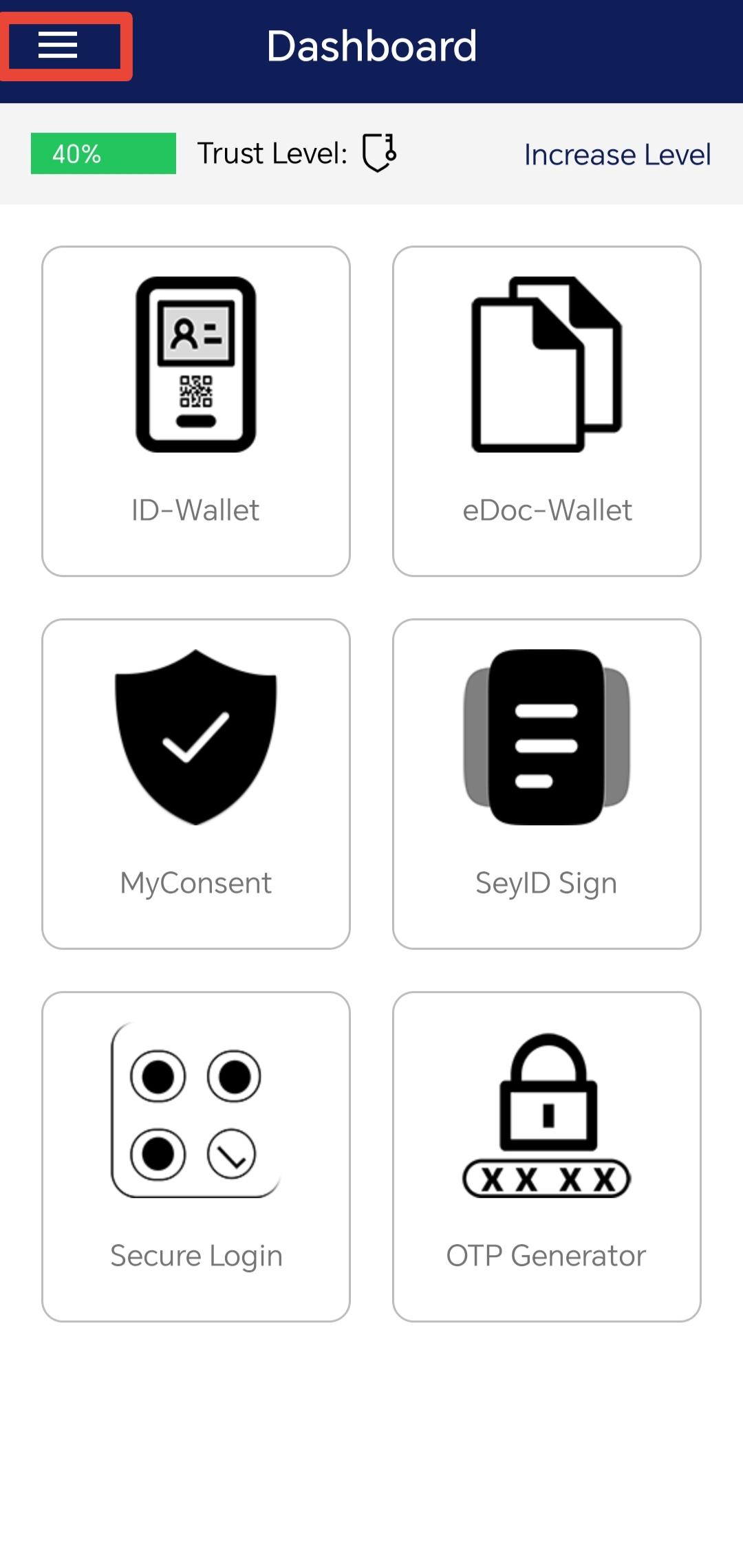
Step 1: Open the side menu
Step 1 of 5
Open the side menu
Start from the dashboard and tap the hamburger menu to open the side menu.
CONSENT STATUS
What the different statuses mean
These simple status cards help users quickly understand what happens after they make a choice.
Approved
Request can continue
Approved means you allowed the request to continue for that purpose.
Denied
Request does not go ahead
Denied means the service cannot receive your information through that request.
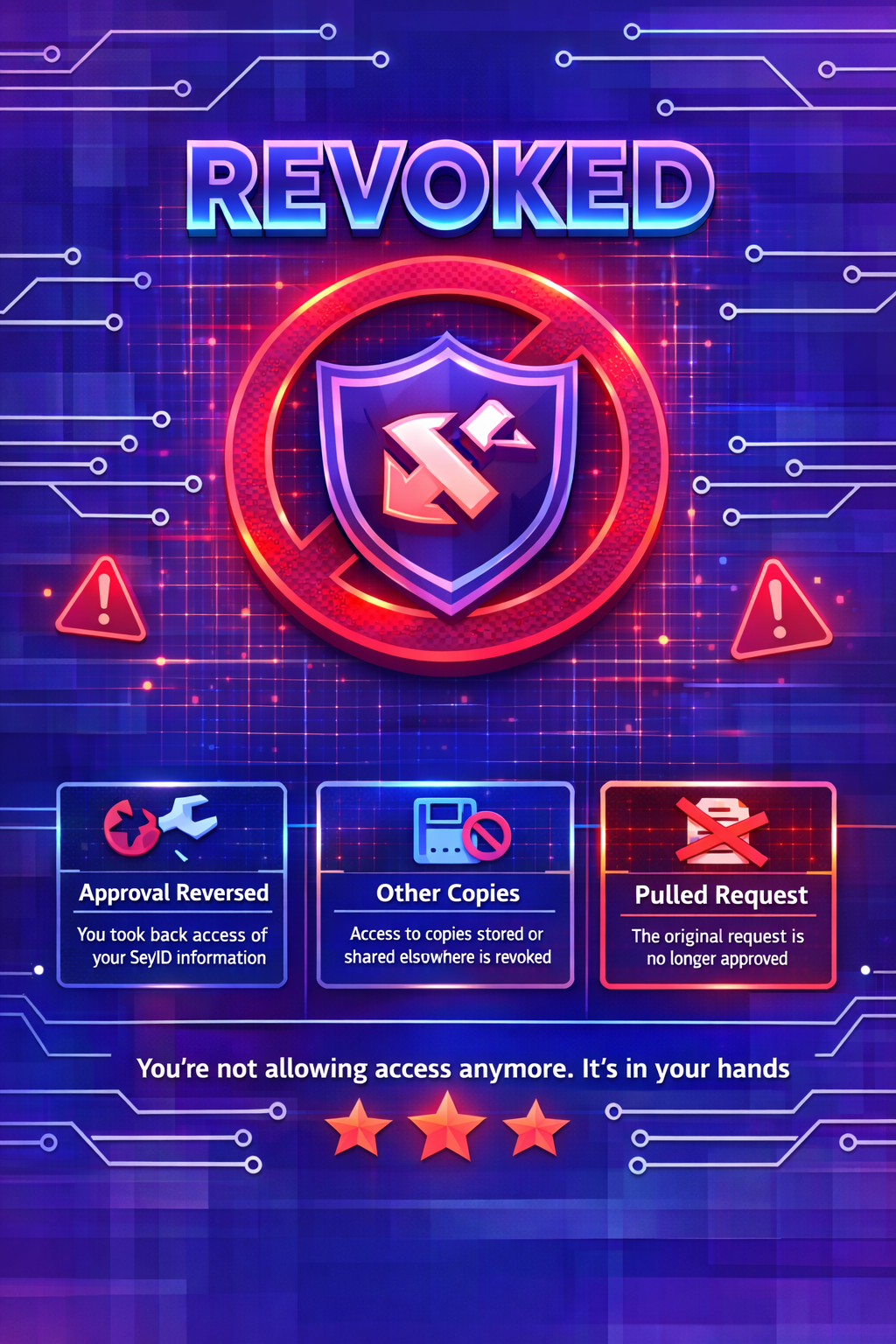
Revoked
Approval was taken back
Revoked means an earlier approval was taken back within the allowed period.
Sensitive status
In certain special cases, access may be recorded differently and later shown with a Sensitive status in MyConsent.
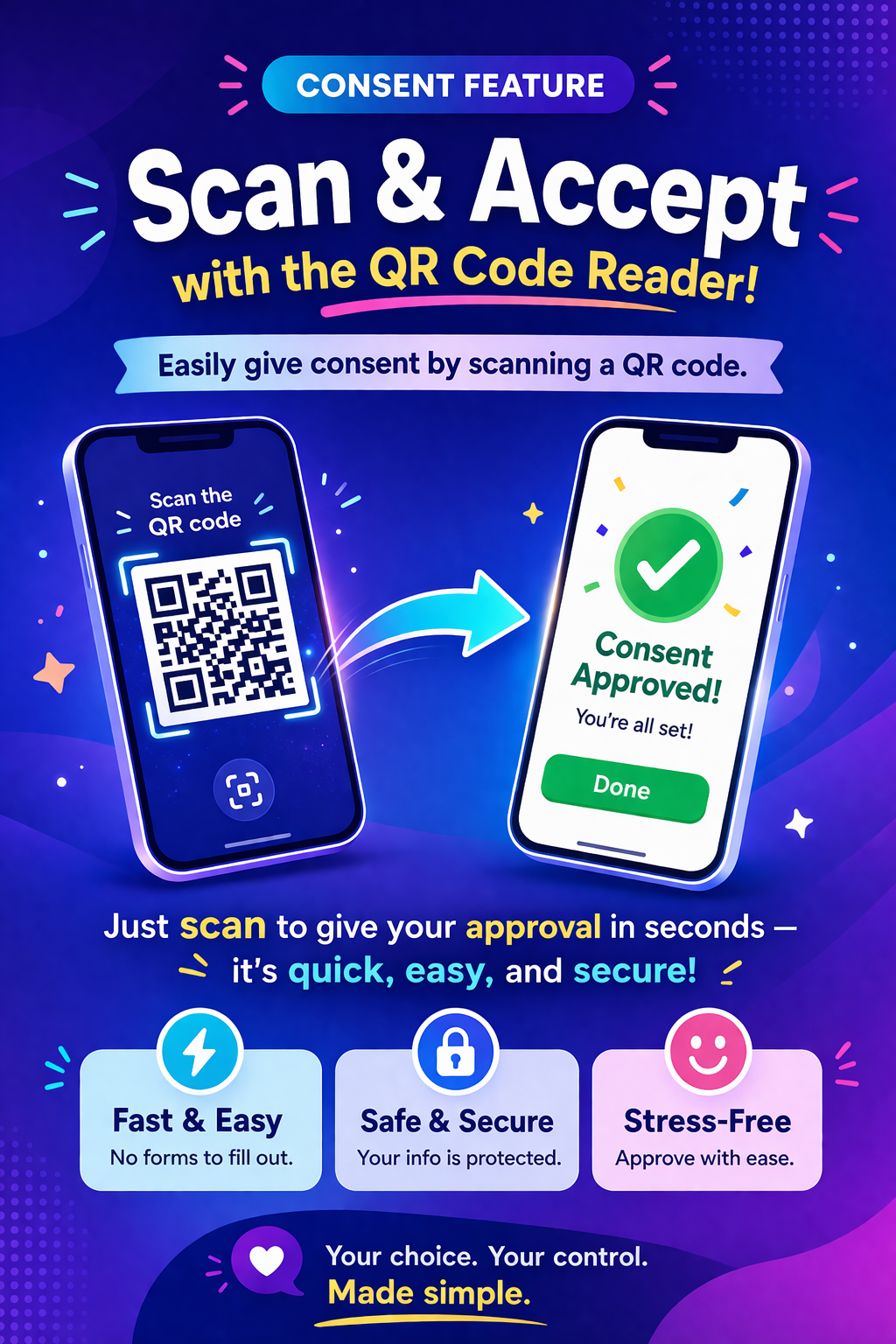
QR CODE READER
Faster consent with QR scanning
When a SeyID-enabled service shows a QR code, the user can scan it in the app and move forward more quickly.
Scan the code
Open the QR Code Reader in the app and scan the code shown by the service.
Get the request
The app recognises the journey and continues the next step more easily.
Move ahead faster
It reduces manual steps and gives users a quicker way to continue.
Made for quicker journeys
The QR Code Reader helps supported journeys feel faster and easier for users.
FAQ
Helpful answers
If you decline, the service will not receive the requested information through the SeyID consent feature.
Depending on the service, this may include basic profile details such as your name, email address,
phone number, or address.
No. It helps the journey feel quicker and easier, but the request still continues through SeyID.
Certain authorised access may appear later in MyConsent with a status labelled Sensitive.